





by · MasLogin · October 9, 2025
When you create a new browser profile in MasLogin, you also need to configure Advanced Settings for finer control over the simulated browser environment. “Restore Last Tabs” can restore all pages that were open when the profile was last closed; “Profile Multi-Open” allows multiple members to open the same profile at the same time; and “Extension Settings” lets you add functional add-ons so the selected extensions are installed automatically when you open the profile. Details are below.
Edit Profile – Advanced Settings
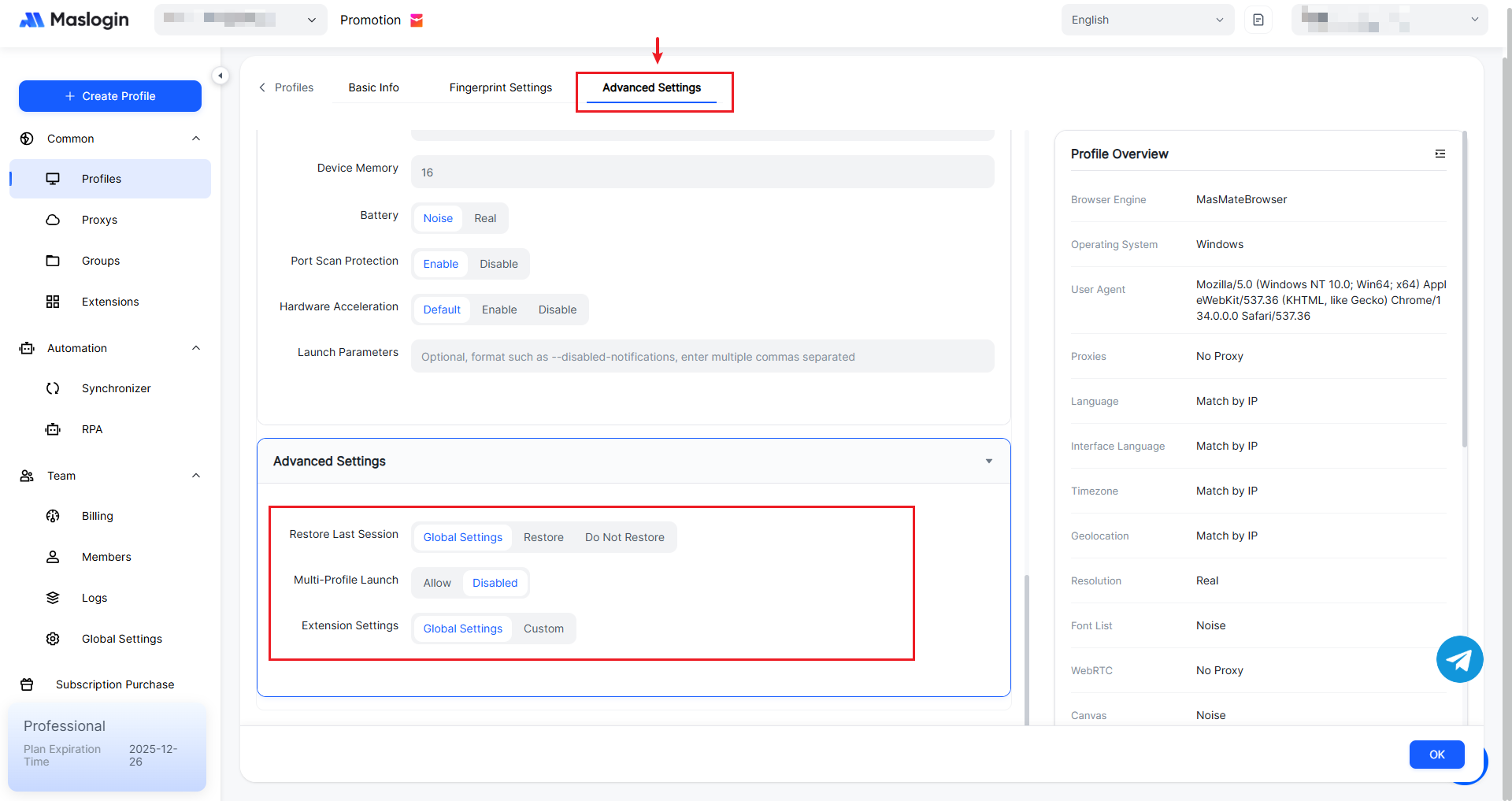
【Restore Last Session】: Controls whether the profile restores the tab session from before it was closed when restarting. By default, it follows Global Settings.
- Global Settings: Inherits the system-wide restore policy.
- Restore: Automatically restores the tabs from the last session when opening the profile.
- Do Not Restore: Opens only the default or fixed pages each time the profile starts.
- Recommendation: If you need to keep work context or maintain continuity for ad account management, choose “Restore”. If you are operating with anti-linking in mind, choose “Do Not Restore”.
【Multi-Profile Launch】: Controls whether the same profile can be opened in multiple browser instances at the same time. Disabled by default.
- Allow: Allows multiple users to open the current profile simultaneously for testing or multi-task workflows.
- Disable: Only one instance can run for the same profile to prevent fingerprint conflicts.
- Recommendation: To avoid accounts being flagged for abnormal logins, choose “Disable”.
【Extension Settings】: Sets the source and method for loading extensions when the browser starts. By default, it follows Global Settings.
- Global Settings: The profile uses the system-wide configured extensions.
- Custom: Add or remove extensions specifically for this profile.
- Recommendation: If all accounts require the same extensions, use “Global Settings”. If certain profiles need specific extensions (such as SEO tools or ad-management add-ons), choose “Custom”.